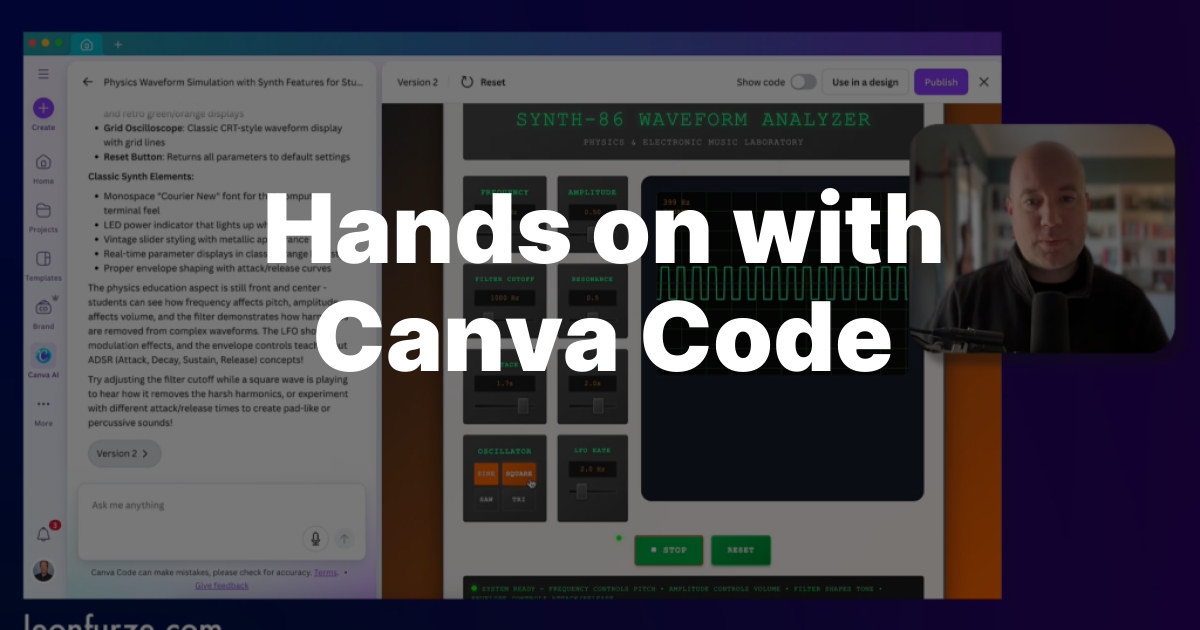
When Canva first launched its code tools in Canva AI, I was pretty cynical. In fact, I was definitely too harsh, with my first post based on a few basic experiments. I wasn’t impressed because I couldn’t see how it was any different to other offerings such as ChatGPT’s Canvas or Claude’s Artifacts – it was quite a bit less sophisticated than those products. I also couldn’t really see how it fit with the broader product: Canva is a design tool, great for making infographics, presentations, posters and the like. Why were they suddenly jumping on the “AI”vibe coding” bandwagon?
But I do know that Canva has been working with educators to inform their AI products, and so I was pleased that the code feature has been improved over time. It still has a fairly educational flavour (many of the default options reflect classroom activities like simulations, quizzes, and flashcards), but under the hood it has become a lot more capable.
What is Canva Code?
The coding capabilities are a sub-feature of Canva AI, a suite of tools built into the design software to allow for the creation of no-code apps and websites. It can be found alongside the other AI features such as Design, Image, and Doc.

The purpose of Canva Code is to make simple applications – predominately HTNML and JavaScript based – which can then be shared or added in to existing designs. On selecting the Code option, a few examples pop up like the ones below:

Selecting one of the default options (I chose the interactive timeline) pre-fills the chatbot style text box with a prompt, which can be edited. You can of course write your own prompt from scratch. Canva has a partnership with OpenAI, so without reading the terms and conditions with a magnifying glass I’ll assume that this prompt is sent to one of the GPT-4 or 5 series models.


The application writes what is essentially an entire webpage with the required application built in a combination of HTML, CSS and JavaScript. It’s very “ChatGPT” in the way that it writes applications, with some consistent aesthetics across different apps that look like post-training or instructions on the Canva side. It tends very strongly towards purple gradient backgrounds, for example, and makes heavy use of pretty classic web fonts like Georgia. If you want something less vanilla, you can of course specify that in your prompts.
Once it’s created, you have a few options for what you can do with it. You can “edit” the code with subsequent prompts, add the application to a new or existing Canva design, or publish it as a public website. Here’s the timeline created from the above prompt: Historical Timeline.

Adding Data to Canva Code
So far, there’s not much difference between Canva Code and competing products like Claude Artifacts. However, Canva have recently added a very useful new feature to the application which does make it stand out (at least until the other developers add the feature as well…).
You can now add persistent data storage to Canva Code applications. Put simply, the application adds a spreadsheet in the background and can create and store new data. This means that your Code applications can now do things like add and retrieve information, save states, and so on.
One major caveat at the moment is that anyone with access to the application can access the data, so you wouldn’t use this feature for anything remotely sensitive. For example, I wouldn’t recommend making a survey in Canva Code and sharing it with participants, because all of the participants could theoretically access all of the results. But, if you’re making a shared app where privacy is less important, then this new feature is impressive.
In the video below, you can see this feature in action (as well as a full and detailed run down of many of the other features.
Future Improvements
When the product was first released I was too dismissive; however, there is one feature I was critical of which I still find problematic. Aside from prompting, there is no way to edit the code produced by Canva. This might not be a deal breaker for most educators, who probably aren’t interested in directly editing the code anyway. But for transparency, ease of use (it’s much easier and quicker to directly edit code than re-run the entire prompt), and flexibility I really hope they make this a feature in the future.
This lack of editing capability is also problematic because Canva Code doesn’t necessarily write the best code. For example, in the ‘Historical Timeline’ page made above the code loads Tailwind (a CSS framework for adding styles to websites) but then never actually uses it. It looks like hallucinated boilerplate for what the underlying LLM thinks a webpage should have, and it’s totally unnecessary.
It’s also quite difficult to actually find things once you’ve created them. I searched and searched for the 1984 “whiteboard” app I made in the video above, but I was unable to find it in any of the ‘Recent Design’ tabs or the chat history. I eventually tracked it down in the ‘Recent Chats’ section, but only after specifically clicking the ‘Code’ button in the chat window.

Overall Verdict
Now that Canva Code is a little more mature (and they seem to have stopped referring to it as “Magic AI”, in-keeping with my 2023 predictions about the language used to describe these technologies), it’s a much better product. It’s reasonably quick, if a little bloated, and produces reliable and consistent applications.
In the video, you can see that it holds up well against Claude Artifacts, which is probably “best in show” for these kinds of simple apps. Aesthetically, it’s got a definite vibe which is very on-brand for Canva, and the simple controls would make it easy for any educator to play around with.
I’d love a few more advanced features and the ability to edit the code directly, but the addition of data storage in Canva Sheets is a definite win that means I’d probably use this application over others in the future. Canva is, of course, very well represented in Australian schools already, so it’s probably an easy one to experiment with in K-12.
Coding simple apps, making webpages, and building simulations for education is a core part of the Intermediate module of my new course. Check out all the details here:


Leave a Reply